 IRP Broadcaster
IRP Broadcaster
IRP Broadcaster
Staff Tool
A small Windows app that sends your in-game admin broadcast messages on a timer, so you don't have to type them out by hand. Free for IRP staff — you'll need a key from an IRP key manager to use it.
IRP Broadcaster is a small, free tool made by our own staff team — it isn't signed with an expensive commercial code certificate, and it hasn't been downloaded by millions of people yet. That's exactly what Windows Defender SmartScreen and some antivirus programs use as a rough "is this trustworthy?" signal, so a new app from a small team can get flagged even when nothing's wrong with it.
It is not a virus. The app only clicks and types inside the Roblox window to send your chosen broadcast — it doesn't touch your files or accounts. If Windows shows "Windows protected your PC", click More info → Run anyway. If unsure, ask an admin in the Discord first.
Timed broadcast automation, custom messages, a mini overlay, and Player Actions (name capture → Warn / Kick / Ban).
IRP_Broadcaster_Setup.exe · ~121 MB DownloadTakes about a minute. No admin rights needed.
Open your Downloads folder and double-click IRP_Broadcaster_Setup.exe.
If SmartScreen pops up ("Windows protected your PC"), click More info → Run anyway — see the note at the top of the page for why that happens.
The setup window shows where the app will go. The default location is fine for almost everyone — use Browse… only if you want it somewhere specific. Leave both shortcut boxes ticked, then click the green Install button.
Nothing is downloaded during install — everything the app needs is already inside the one file.
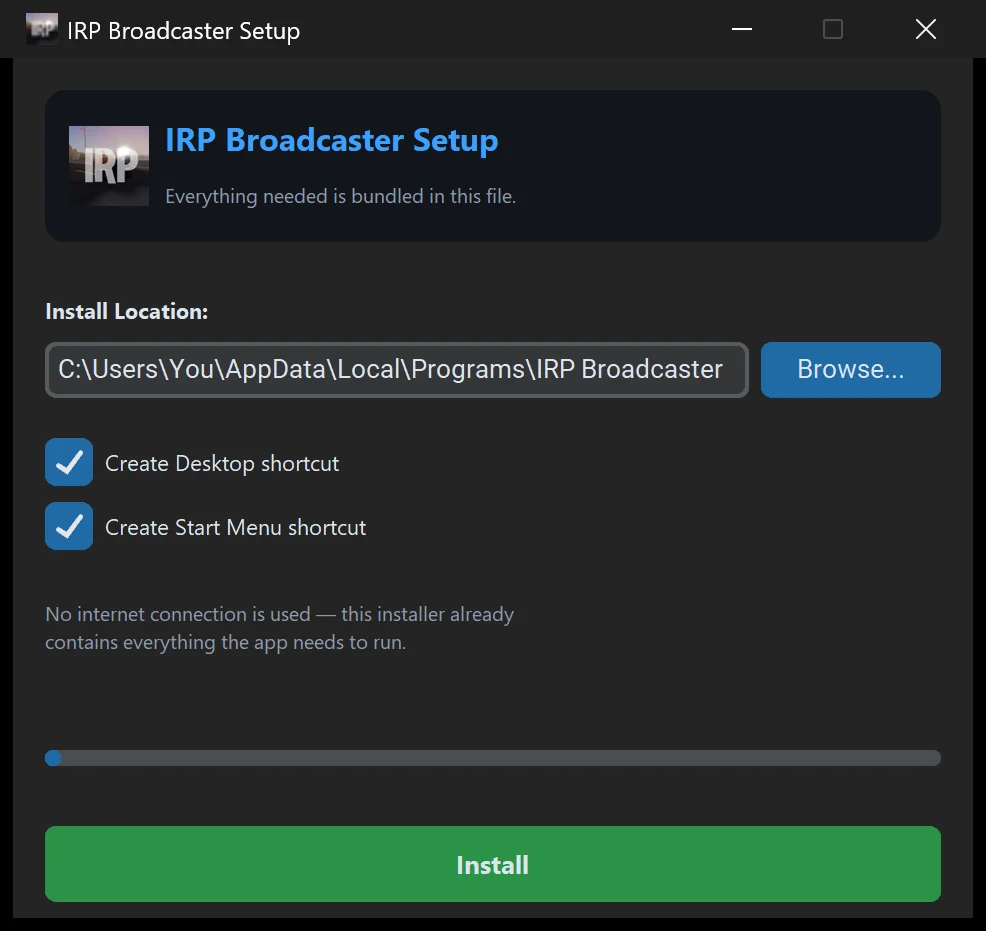
When the progress bar completes, leave Launch now ticked and click Finish. You'll have a Desktop and a Start Menu shortcut called IRP Broadcaster.
A one-time unlock, then you're in for good on this PC.
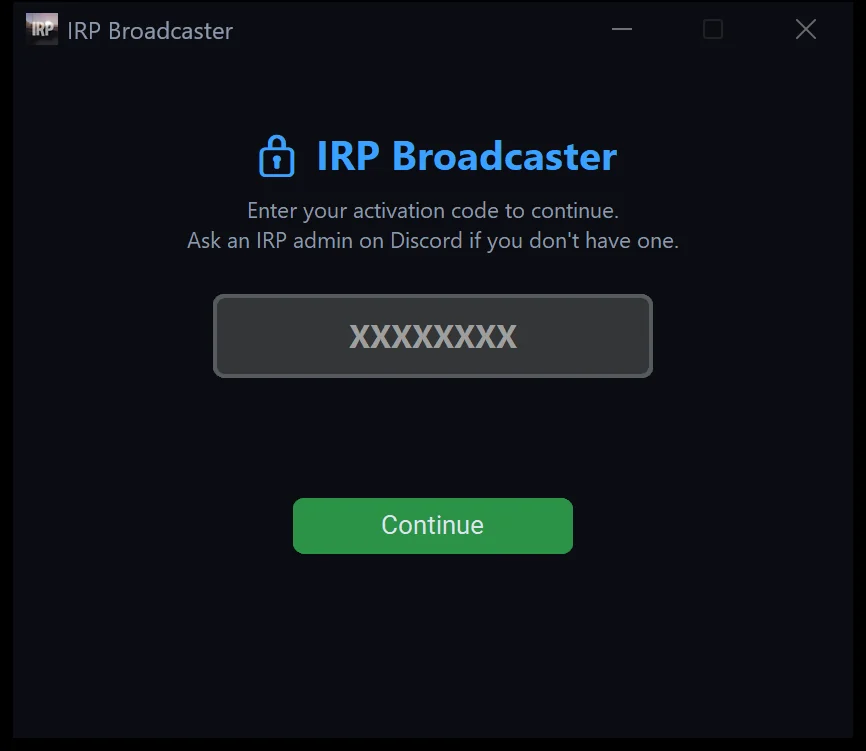
The first time it runs, IRP Broadcaster asks for a one-time activation code before anything else loads. Ask an IRP key manager on Discord if you don't have one yet. Each code works once and expires after 7 days, so ask when you're ready to install.
Type it in and click Continue — you only enter it once per PC.
After activation the full app opens. Top to bottom:
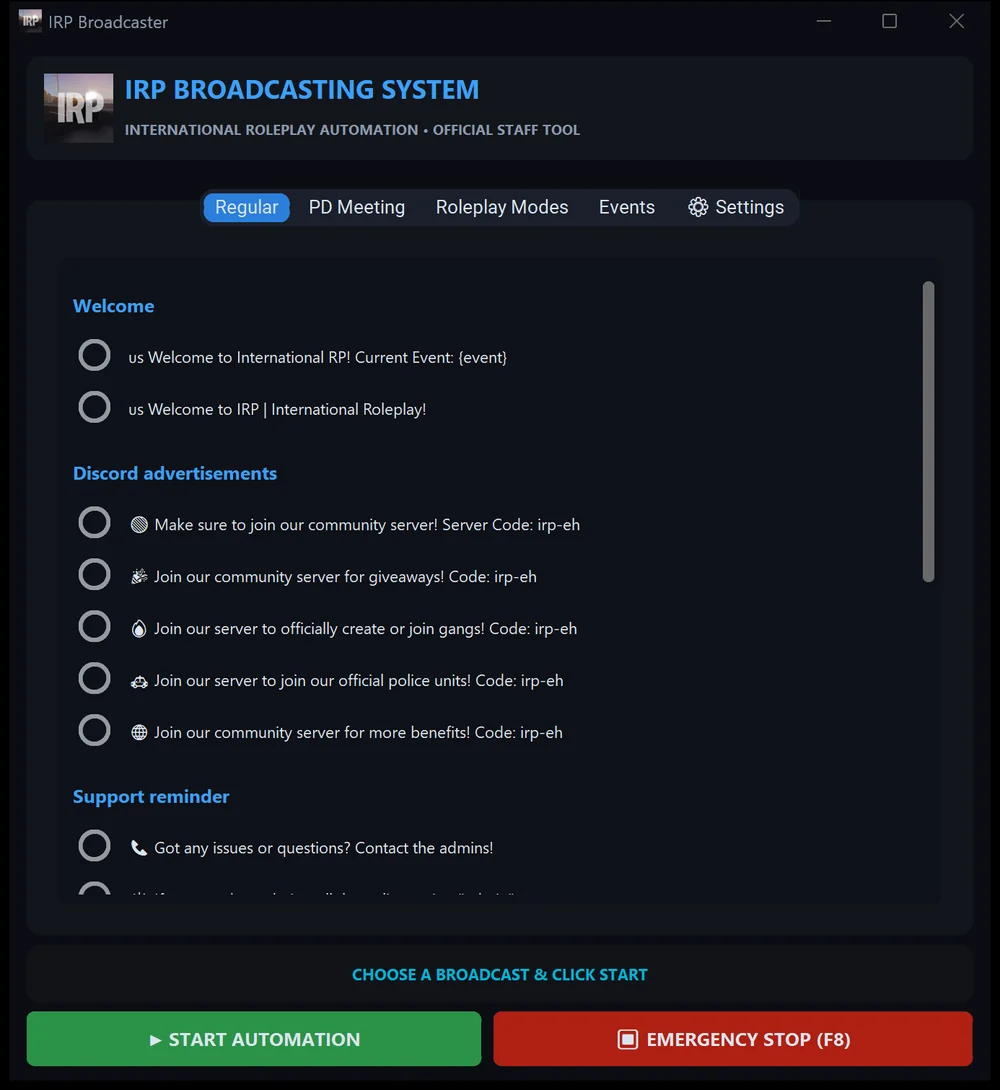
Pick a line, hit start, and let it type into Roblox for you.
The messages are the ones from IRP's Broadcasts Book. Click through the tabs:
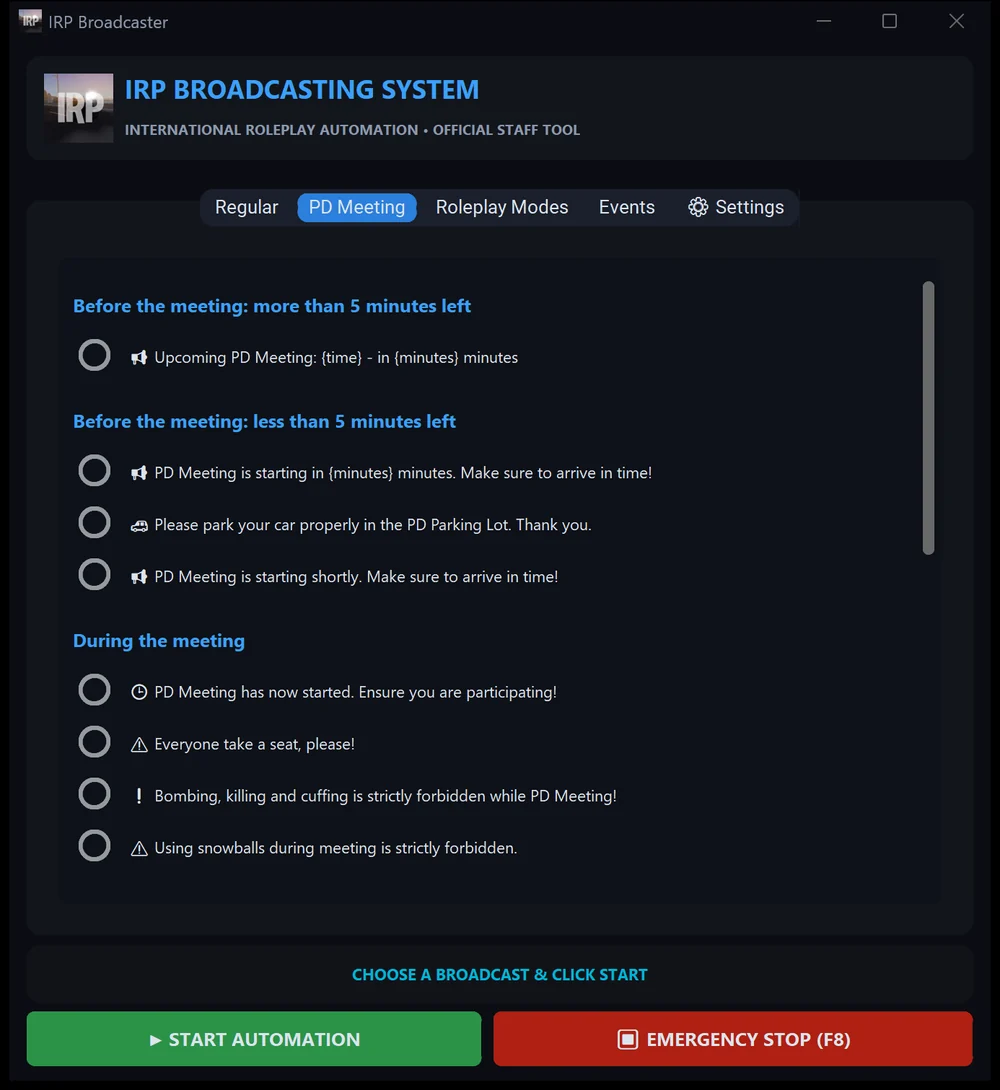 PD Meeting
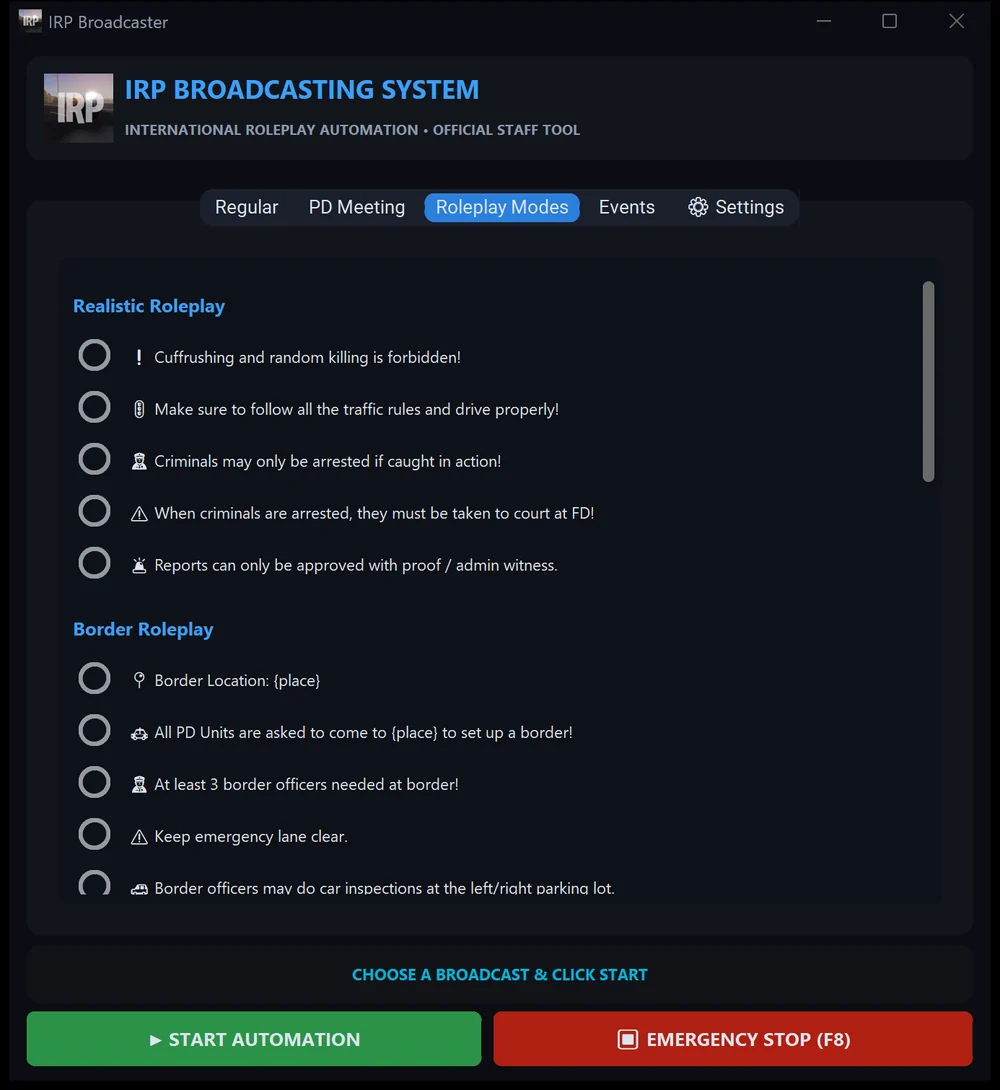 Roleplay Modes
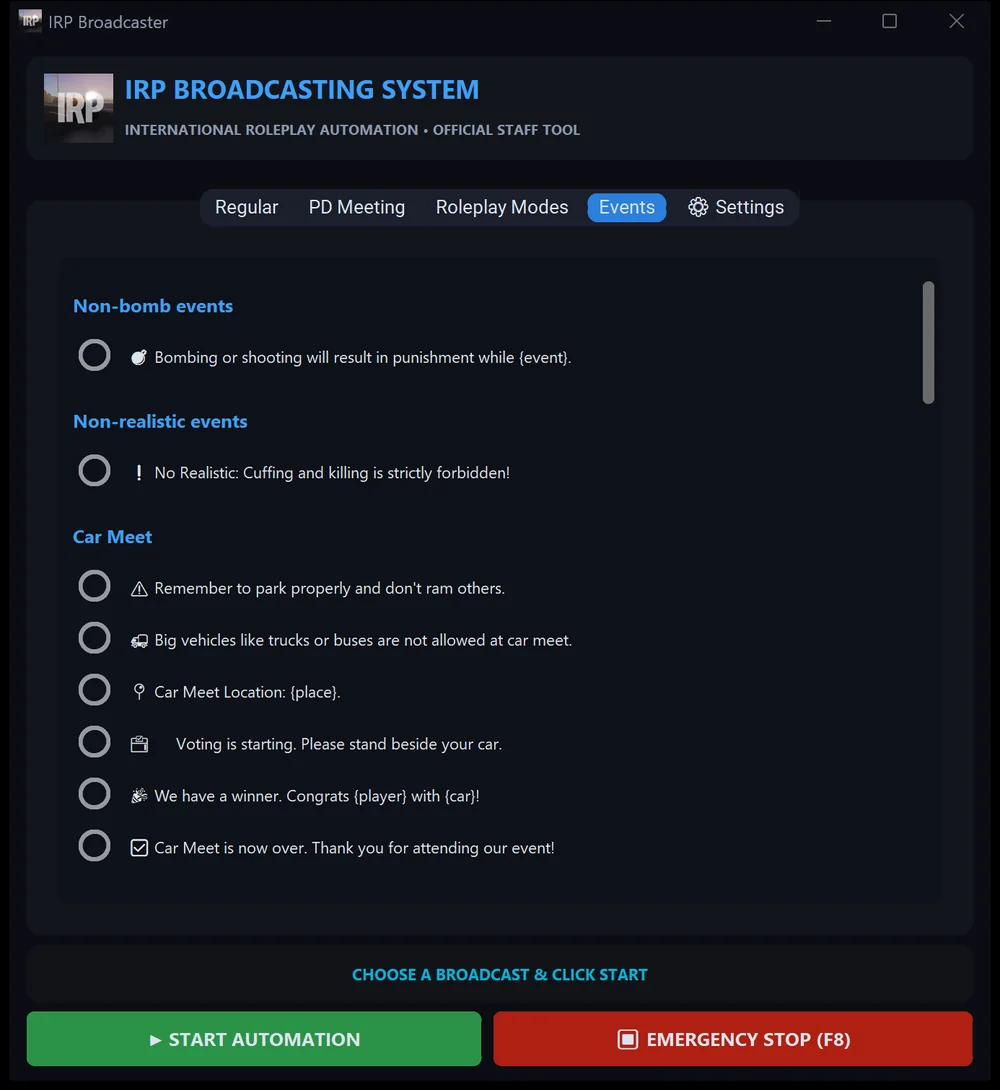 Events
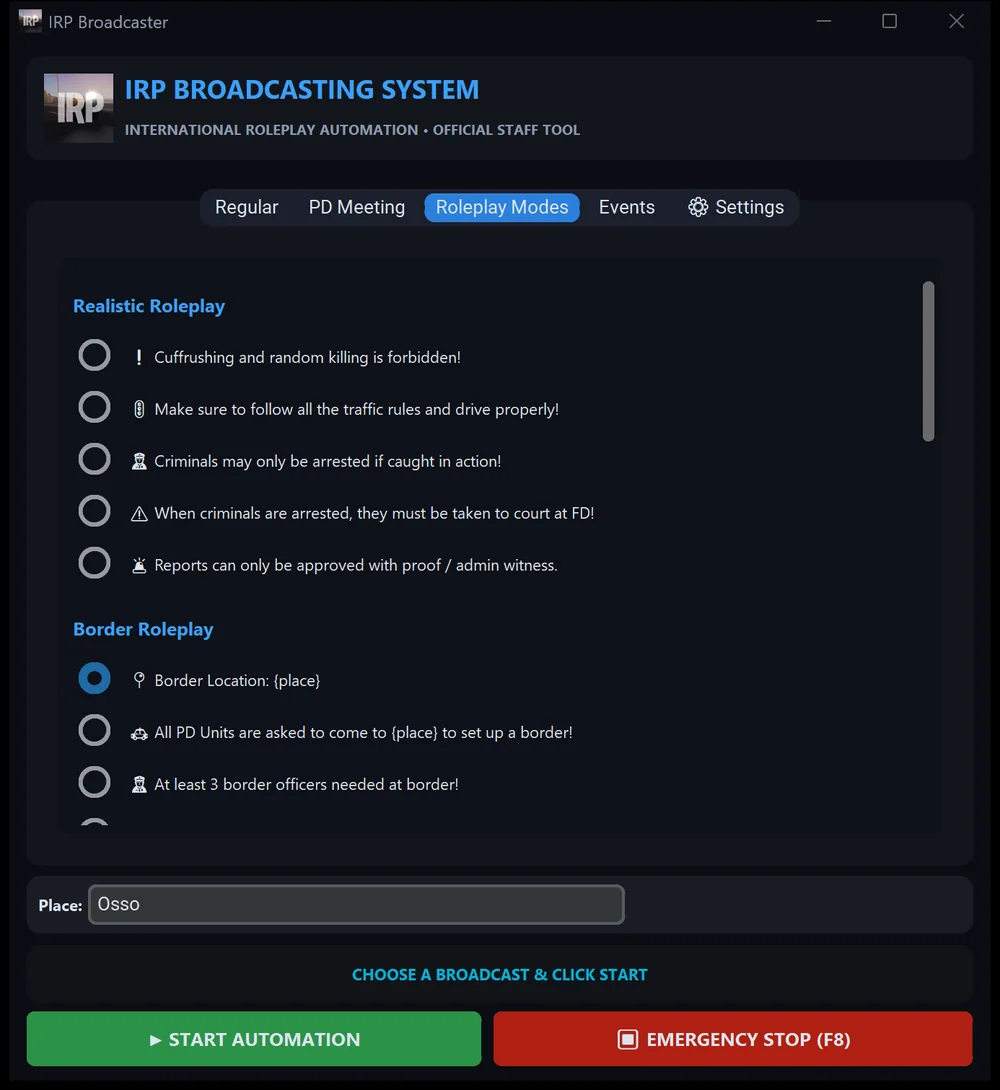
Click the circle next to the broadcast you want (or click its text). It fills in to show it's selected — that's the line the app will send. Only one message is active at a time; pick another circle any time, even while automation is running.
Some messages have blanks — like {place}, {minutes} or {player}. When you select one, a fill-in box appears above the Start button; type the value there (here, Osso) and it's put into the message. What you type is remembered for other messages that use the same blank. The app won't start or send while a blank is still empty, so a half-finished message can never reach the server.
Then open Roblox and join your server. The app only broadcasts while Roblox is your active window — if it can't confirm you're in Roblox when the timer runs out, it quietly skips that round and tries again next time. You also need permission to run message Broadcast yourself; the app just types it for you.
Hit the green ▶ Start Automation. The status bar switches to a live countdown to the next broadcast (120 seconds by default).
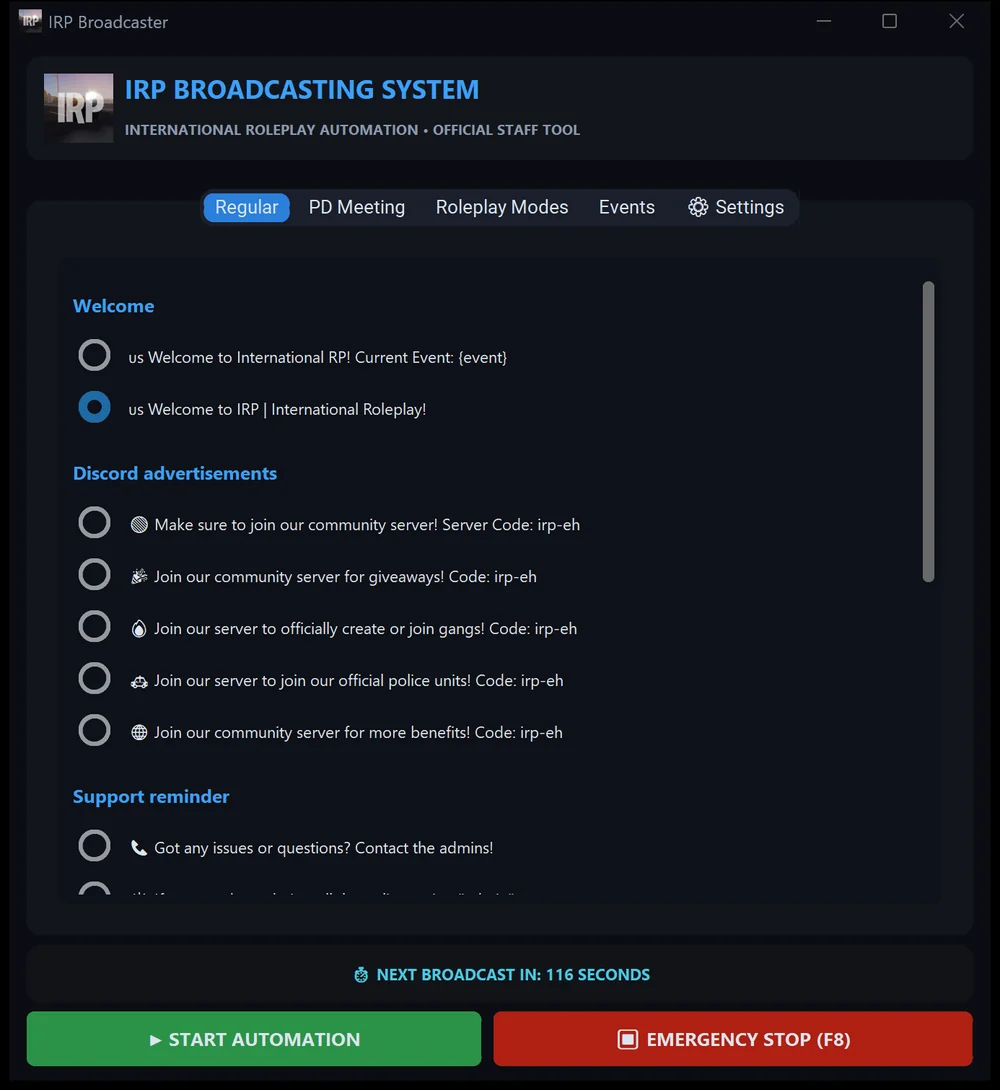
To stop, click Emergency Stop or press F8 anywhere.
Tune the timing, add your own lines, and get it out of the way.
Open ⚙ Settings to change:
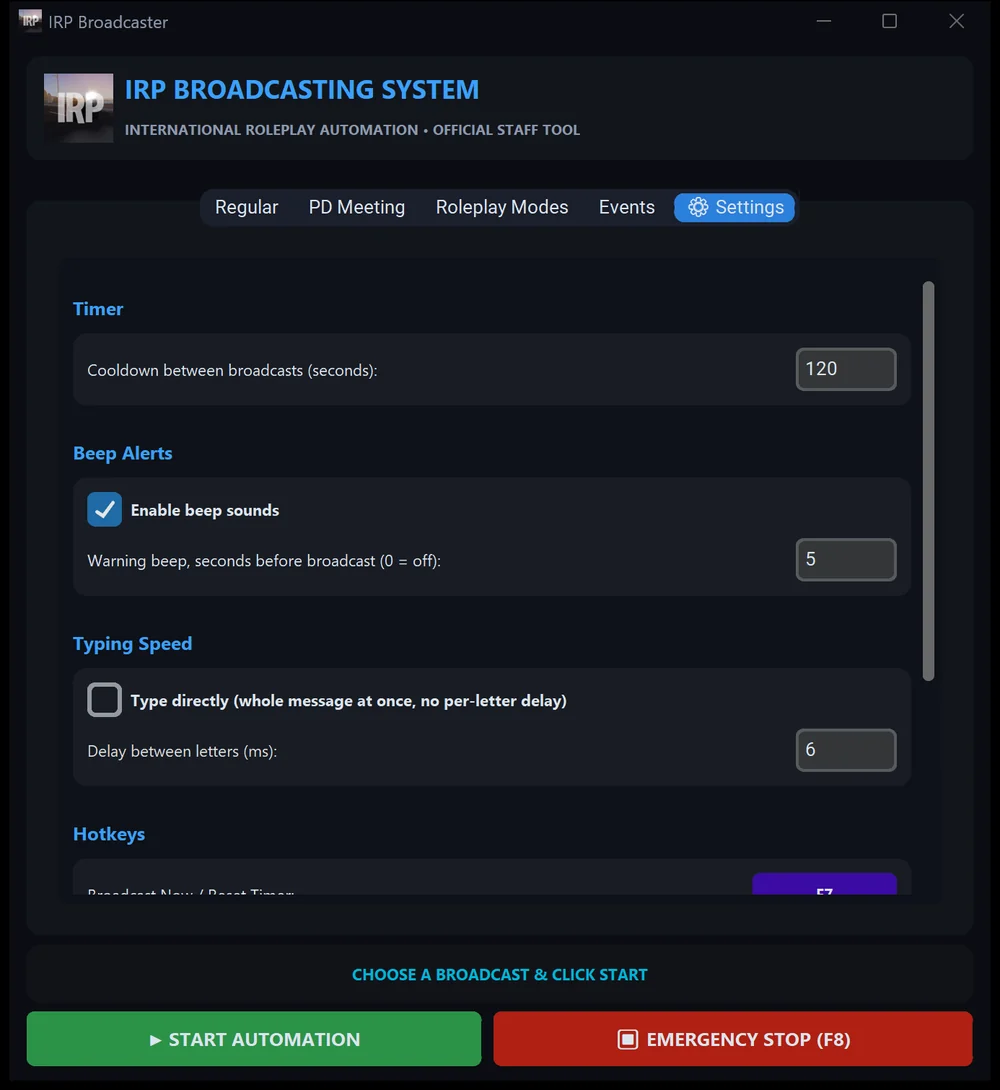
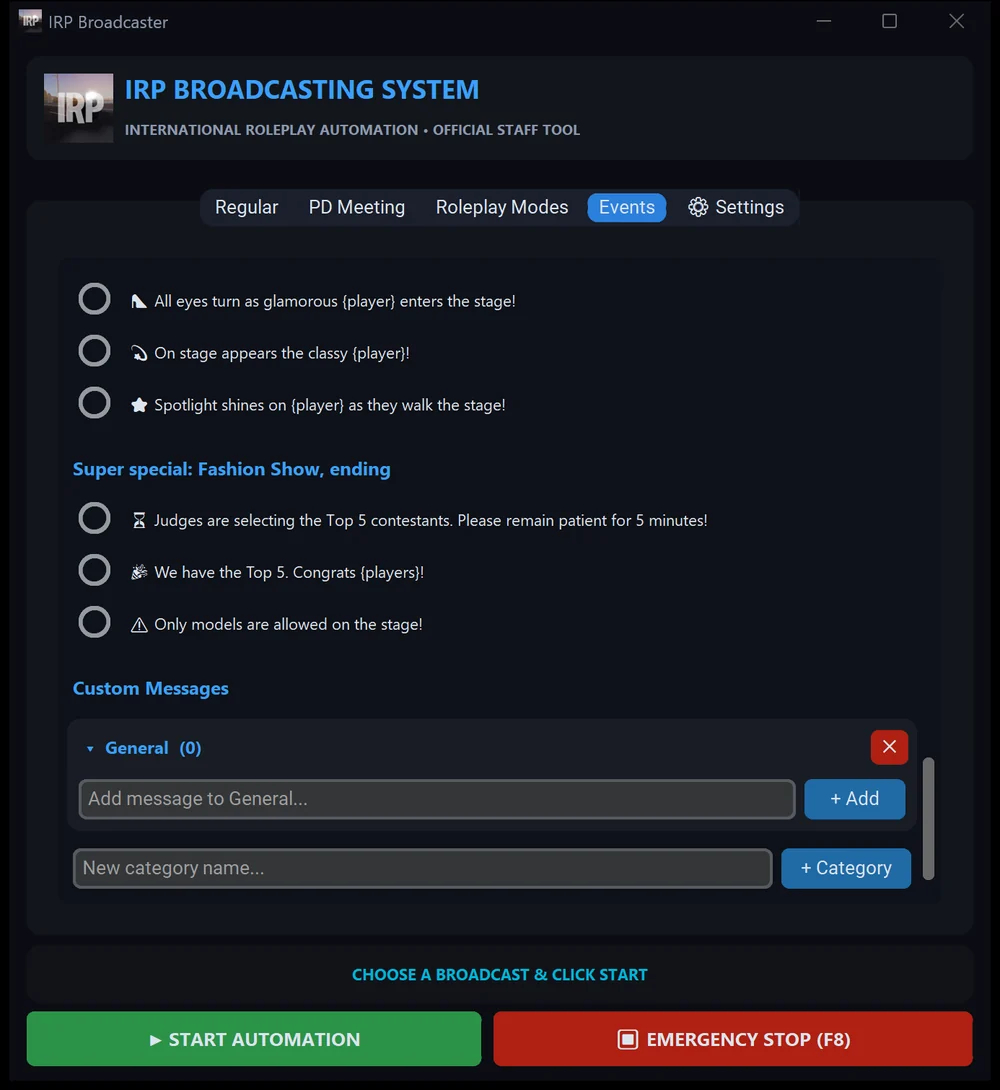
Scroll to the bottom of the Events tab to Custom Messages. Type a line into the Add message to… box and click + Add (or press Enter). It's saved automatically and selectable like any built-in message. Use + Category to make your own headings, and the red ✕ to delete one.
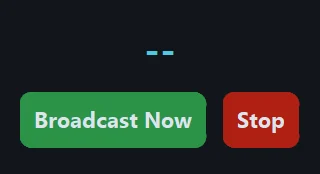
Double-click the countdown text to collapse the app into a small always-on-top overlay you can drag anywhere over Roblox — just the timer plus Broadcast Now and Stop. Drag its edges to resize it, and double-click it again to bring the full window back. It remembers both sizes.
Warn, kick or ban straight from a name on screen. Hidden until you switch it on.
In ⚙ Settings, scroll to the bottom and tick Enable Advanced Features. A new Advanced tab appears next to Settings.
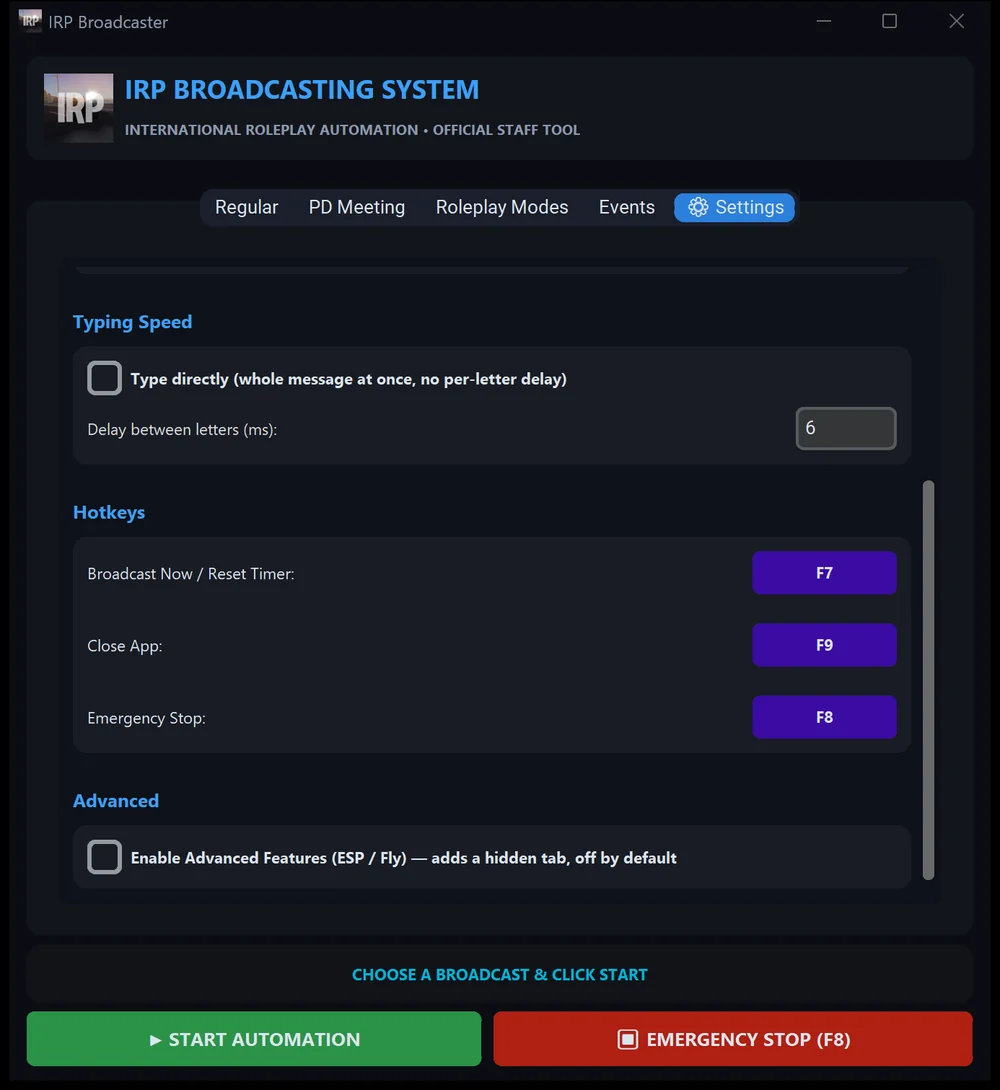 Tick this…
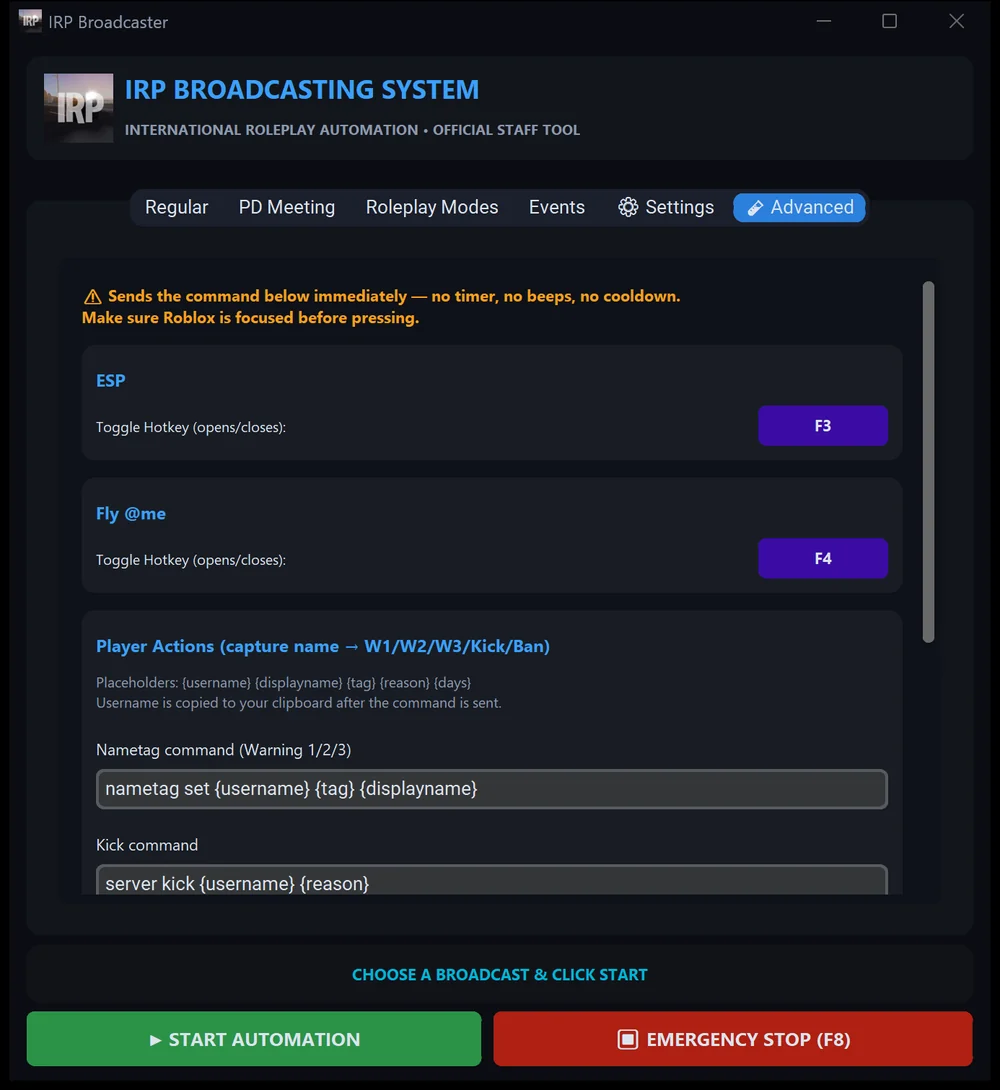 …and this tab appears
The top of that tab has two admin toggles, ESP and Fly @me. Each has a hotkey and sends its command immediately — no timer, no beeps — so make sure Roblox is focused first and only use them if your rank allows it.
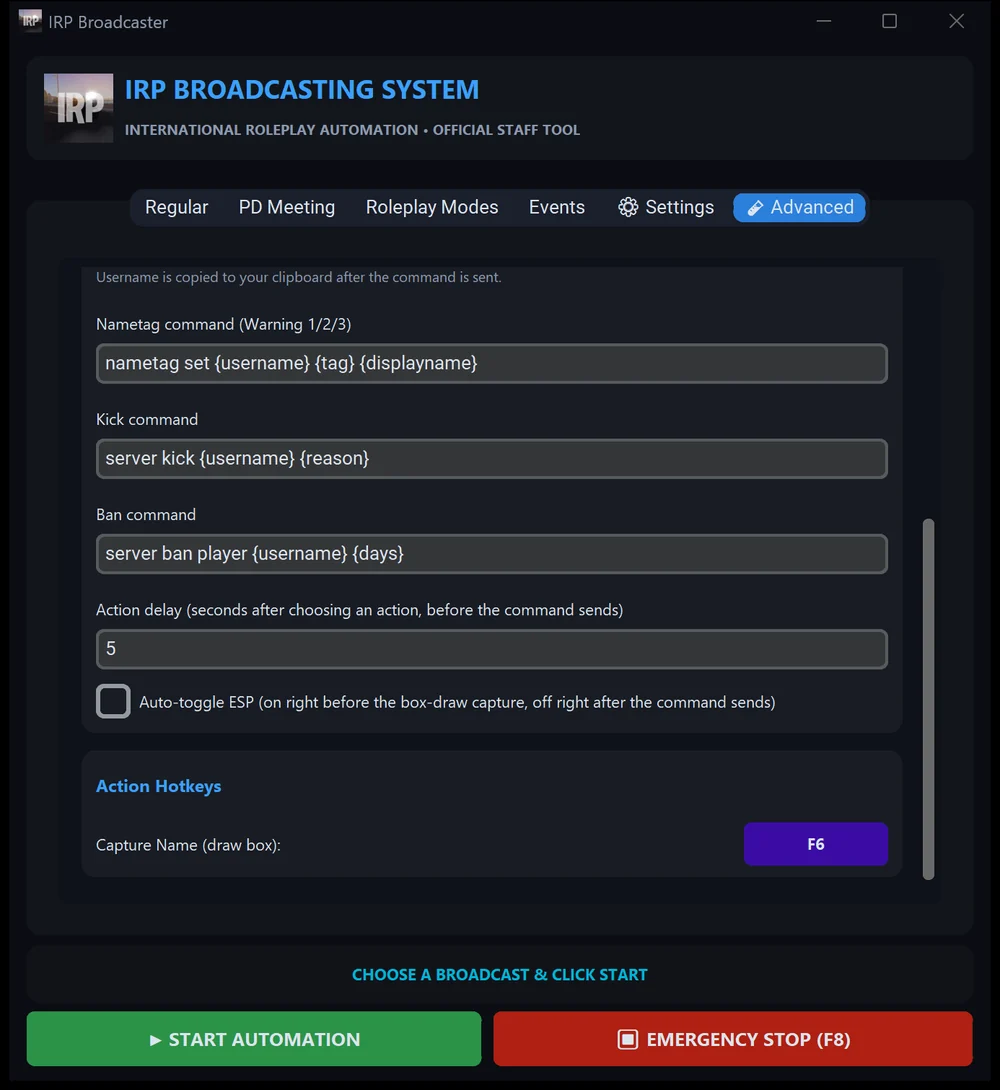
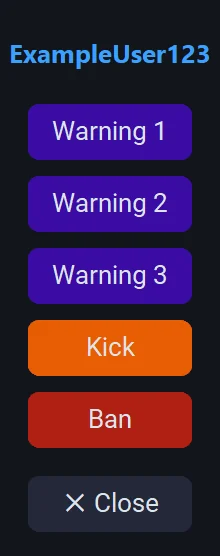
Further down the Advanced tab is Player Actions. It holds the command each button sends — Nametag (Warning 1/2/3), Kick and Ban — using the placeholders {username}, {displayname}, {tag}, {reason} and {days}. There's also an Action delay (seconds between picking an action and the command sending, 5 by default) and the Capture Name hotkey, F6.
Roblox wasn't your active window when the timer ran out, so the app skipped that round on purpose. Click into Roblox and it'll send on the next cycle.
Something interrupted the typing — usually a key press or click during the send. Don't touch anything between the second beep and the message appearing. If it keeps happening, raise the per-letter delay in Settings.
From an IRP key manager — ask in the Discord. The code is entered in the app, not on this site, and each one only works once.
A key manager banned that key, which deletes it. Open the app again and enter a new activation code when it asks — get one from a key manager on Discord. Nothing else needs reinstalling. The app checks about once a minute, so it can take a moment to notice.
Expected for a new, unsigned app — see the note near the top of this page. Choose "More info → Run anyway", or restore it from antivirus quarantine. Ask an admin on Discord if you want to double-check first.